Apple Pay Coming Soon
Tap to pay with Apple Pay™
Add your Mawarid Credit Card to Apple Wallet™
Apple Pay
Fast, easy and secure way to pay.
Enjoy all the benefits of your Mawarid Cards using Apple Pay - it is an easy, secure and private way to pay.
Adding your card to Apple Pay is simple.
How to set up Apple Pay
Enjoy a faster and easier way to pay by adding your Mawarid Credit Card or Prepaid Card to your Apple Pay Wallet.
To set-up, follow these easy steps:
iPhone:
1. Open the Apple Pay Wallet app.
2. Tap the '+' sign in the upper-right corner.
3. Use your camera to capture your Mawarid Credit card or Prepaid Card details and follow the on-screen instructions.
4. Set your Mawarid Card as your default card.
iPad:
1. Go to Settings.
2. Tap "Wallet & Apple Pay".
3. Select "Add Credit or Prepaid Card" & follow on-screen instructions.
4. Set your Mawarid Card as your default card.
Apple Watch:
1. Open the Apple Watch app on your iPhone.
2. Tap "Wallet & Apple Pay".
3. Select "Add Credit or Prepaid Card" & follow on-screen instructions.
4. Set your Mawarid Card as your default card.
Set your Mawarid Credit Card or Prepaid Card as your default Card in Apple Pay Wallet:
1. Go to Settings.
2. Tap "Wallet & Apple Pay".
3. Tap "Default Card".
4. Select your Mawarid Card.
How to pay using Apple Pay?
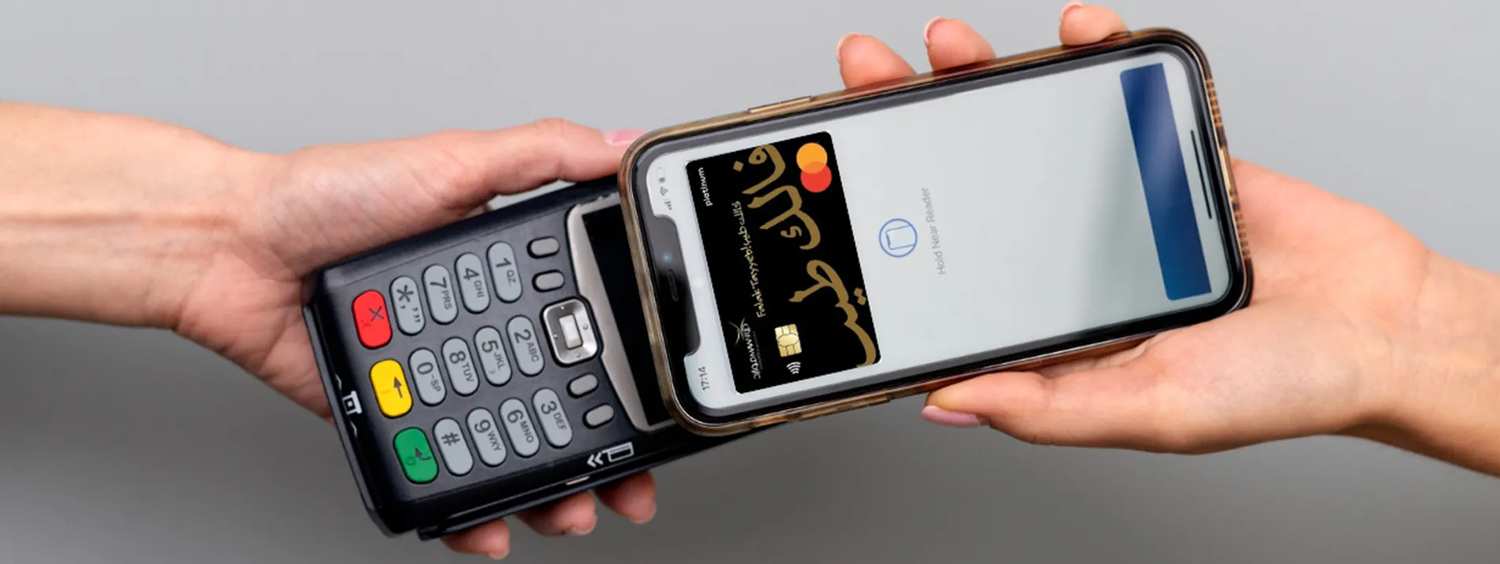
Paying with Apple Pay is quick and simple. After your Mawarid Credit card is added to Apple Pay Wallet, just visit the stores where Apple Pay is accepted and follow the instructions given below.
Paying in stores:
There’s no need to wake your iPhone or open an app. Just follow this simple process:
1. Hold the phone near a reader with your finger on the Touch ID
2. You will see “Done” on the display, feel a subtle vibration and hear a beep
3. Double tap your card and then select ‘Set as Default Card’
Paying with Apple Watch:
1. Double-click the side button and hold the display of your Apple Watch up to the reader
2. You will feel a gentle tap and hear a beep confirming that your payment information was sent
Paying in apps and on the web:
To pay in apps and on the web with iPhone or iPad:
1. Hold the phone near a reader with your finger on the Touch ID
2. You will see “Done” on the display, feel a subtle vibration and hear a beep
3. Double tap your card and then select ‘Set as Default Card’
4. To pay on Mac in Safari choose Apple Pay then complete the purchase with your iPhone or Apple Watch
Where is Apple Pay accepted?
Supermarkets, hotels, restaurants as well as retail outlets and countless other locations, you can use Apple Pay everywhere contactless payments are accepted.
Just look for one of these symbols at checkout.
You can also use Apple Pay within some of the most popular apps in the App Store.